
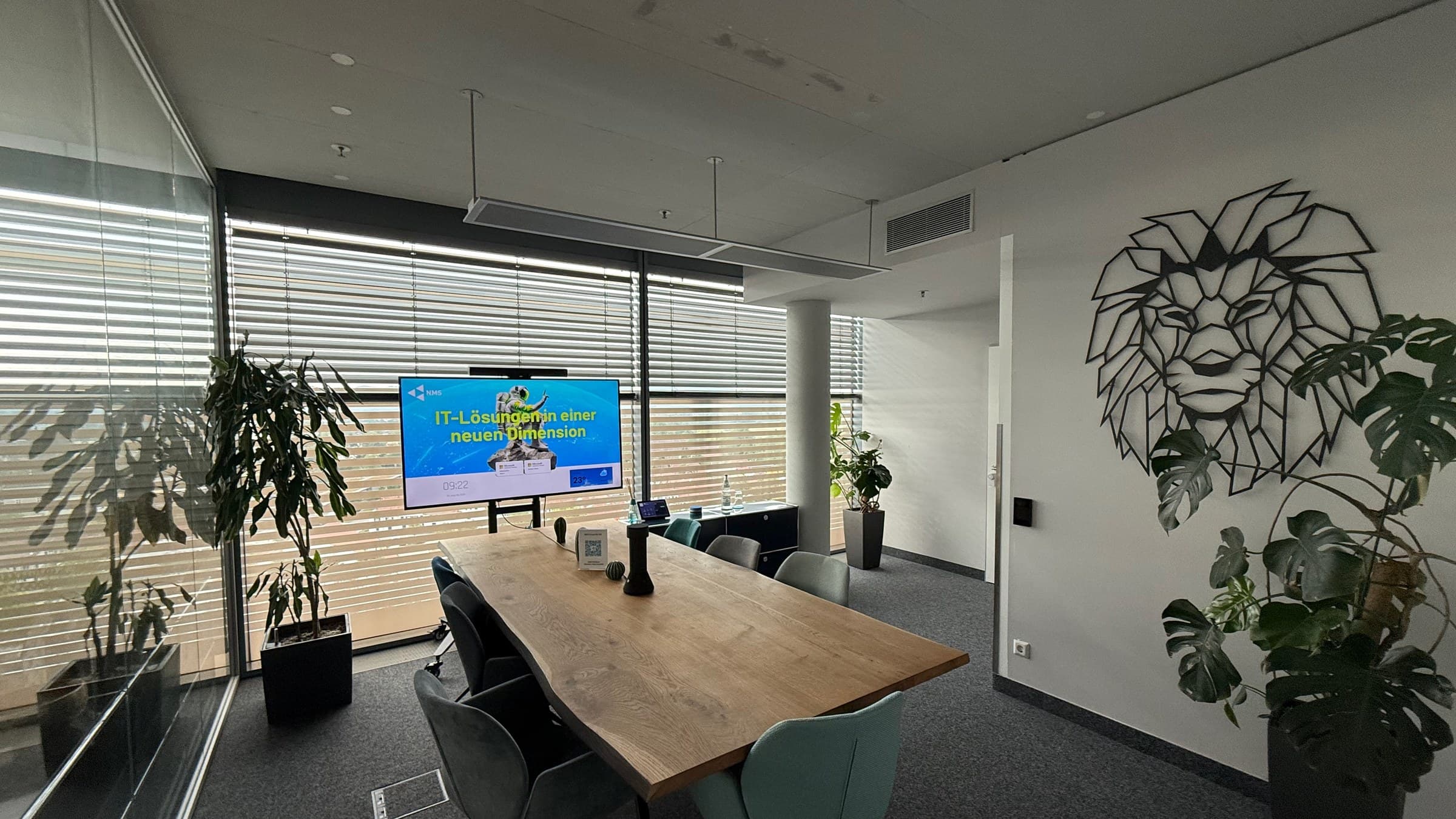
Teams Rooms recognise faces: what happens from mid-October and how your staff enrol in three minutes
From mid-October, Teams shows name labels under recognised people.
News
From mid-October, Microsoft Teams will show name labels underneath the people it recognises in meeting rooms fitted with an intelligent camera. Anyone joining remotely can see at a glance who is in the room and tap a label to open that person’s contact card from the directory.
Two things about this matter, and they pull in different directions. The feature switches itself on without anyone doing anything, as soon as licence, hardware and enrolled profiles come together. And it works with biometric data. This article covers both: what happens technically, and who in your organisation needs to be involved first.
What changes in the meeting room
In Teams Rooms on Windows, name labels will appear underneath the video tiles. People are recognised if they have enrolled a voice or face profile. Anyone without a profile simply gets no label; nothing else changes for them.
Recognition also helps where you cannot see it. A voice profile improves speech isolation, suppressing background noise and secondary speakers, and it attributes spoken contributions to the right person in meeting transcripts.
The timeline
Microsoft gives mid to late October 2026 for general availability, worldwide. The date was originally announced for September and has been pushed back. Three markers matter:
- Now: involve the works council, have data protection review it, settle the policy.
- Mid-October: name labels appear, without anyone switching anything on.
- End of October: general availability worldwide.
There is still time to put rules in place, but no spare: agreeing matters with the works council and data protection takes lead time, while the technical change takes minutes.
Prerequisites: does this affect you at all?
The feature only applies when all of the following are true:
- A Teams Room on Windows with a supported intelligent camera
- A Teams Rooms Pro licence for that room
- The room has been added to the meeting invitation
- At least one participant has enrolled a voice or face profile
Microsoft also states limits for recognition itself: no more than twelve people in the room, no more than 64 meeting participants overall, and people in the room should sit less than five metres from the camera. If you do not operate Teams Rooms with intelligent cameras, none of this affects you.
The point that matters: this is biometric data
Voice and face profiles are biometric data. Processing them therefore falls under Article 9 GDPR, that is, special categories of personal data, which are subject to stricter rules than ordinary employee data.
For German companies there is a second point. A system that records who was in which room and when is regularly subject to co-determination under section 87(1) no. 6 of the Works Constitution Act. Where a works council exists, it belongs at the table before the feature goes live, not afterwards.
Who needs a say
- Management decides whether the feature is allowed at all, and who documents the assessment.
- The works council participates under section 87(1) no. 6 of the Works Constitution Act, before the start.
- Data protection reviews the processing under Article 9 GDPR and decides whether an impact assessment is required.
- IT implements: set the meeting policy and inform staff.
This is not legal advice. It is a note that a review is due here, and that the review should not be settled inside IT alone. Whoever conducts it should also document it: an assessment nobody wrote down does not exist when it counts.
A short guide for your staff
Each person enrols their own profile. It is voluntary, and it can be deleted again at any time. Getting there takes three clicks.
Step 1: open the settings page
In Teams, click the three-dot icon at the top right, that is "Settings and more". Then "Settings", then "Recognition" (the German interface calls it "Anerkennung"). Voice and face sit underneath each other. If the entry is missing entirely, enrolment is blocked in your meeting policy: that is a decision your organisation has made, not a fault.

This is how the page looks while nothing is enrolled: two sections, two buttons. Microsoft itself notes in both sections that this may constitute biometric data.
Step 2: record your voice
Under "Voice recognition", start the recording. Teams either builds the profile on its own during your next eligible meeting, or you read out a short passage once. Either way it takes less than a minute.
Step 3: capture your face
Under "Face recognition", start the capture. Nine images of your face are taken. In good light this is done in a minute; against the light or in semi-darkness it takes longer and becomes less accurate.
This is what it looks like when it worked

At the end, Teams shows this confirmation: two green checks, one for the voice and one for the face, plus two sentences on what the profile is used for. If you only see one of the two checks, one of the steps was skipped.
And gone again: withdrawing the profile

Once a profile is enrolled, the same page looks like this: one button to unenrol and one to update, per section. Microsoft states that updating takes about 30 seconds.
Withdrawing follows the same path as enrolling. Unenrol in the same view, and both the voice and the face profile are deleted. Doing nothing is also covered: a face profile that goes unused for a year is deleted by Microsoft automatically.
That voluntariness is more than a courtesy. It is the reason the feature can be introduced cleanly at all: nobody is enrolled who did not choose to be.
What your IT team can control
Everything here is controlled centrally through the Teams meeting policy, not on the individual device and not in the room. Three routes are open:
- Turn off the name labels. Recognition stays, the labels disappear. The quietest change.
- Block enrolment entirely. Nobody in the organisation can enrol a voice or face any more. Existing profiles are unaffected and have to be deleted individually.
- Allow it deliberately. Settle data protection and co-determination first, inform staff, then allow it.
We will put the right commands in place for you. Call us before you change the policy yourself: a switch set wrongly affects every meeting in the organisation, not just the one room.
How we support you
In 30 minutes we establish whether this affects you at all, that is whether Teams Rooms Pro and suitable cameras are in place, which policy applies to you, and what should be decided before mid-October. On request we bring a template for informing your staff.
If you would like to talk it through, get in touch. More about our work with Teams under Modern communication.
Image credits
The screenshots show Microsoft Teams. Two are taken unchanged from the Microsoft help article "Create your Microsoft Teams recognition profile"; the third was captured in New Media Service GmbH’s own tenant. Used with permission from Microsoft. The photograph of the meeting room shows our office in the Hegau Tower.

Solutions in a new dimension.
One conversation is enough to find out where IT, Microsoft Cloud and AI can take real weight off day-to-day business.
Your contact: Daniel Penninger, Managing Director